


How to Export/Import Existing Popups in WordPress
This article is a step-by-step guide for exporting or importing your already created WordPress popups. Whether you’re moving to a new domain, redesigning a client’s site, or simply backing up your work, this feature can be incredibly useful. Instead of building popups from scratch on every site, you can simply move them with a few clicks.
WordPress Popup plugin makes it easy to export or import your popup without recreating it. Transferring a popup from one website to another has never been easier. Everything from layout, styling, text, and behavior settings will be preserved during the transfer. It eliminates the need for manual copy-pasting and helps ensure that all your designs and settings stay intact.
With the help of just 2 easy steps, you will be able to save time and transfer your already-made popups. Let’s walk through the process and make your popup management faster and more efficient.
Export Popup
Step 1
The Popup Box plugin will allow you to export your popup into JSON file format, which is a commonly used format for transferring settings and content between websites. This makes it quick and easy to back up your work or move popups from one site to another.
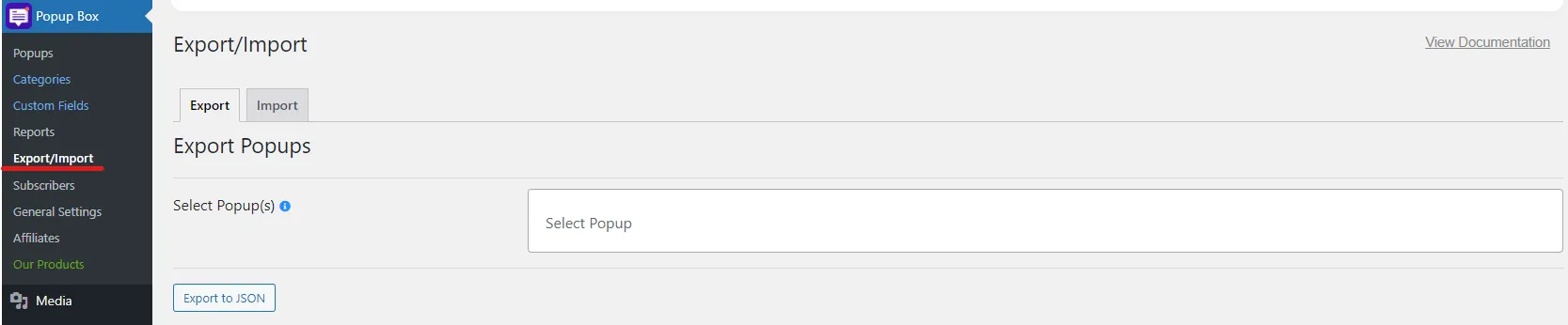
To get started, all you need to do is navigate to the Export/Import page.
There you will see 2 sections: one for exporting your existing popups and one for importing them onto another site.
The process is very easy and doesn't require any coding knowledge. You will be able to export and import your already created popups to your website within minutes.
So, let's move forward with the next step.
Step 2
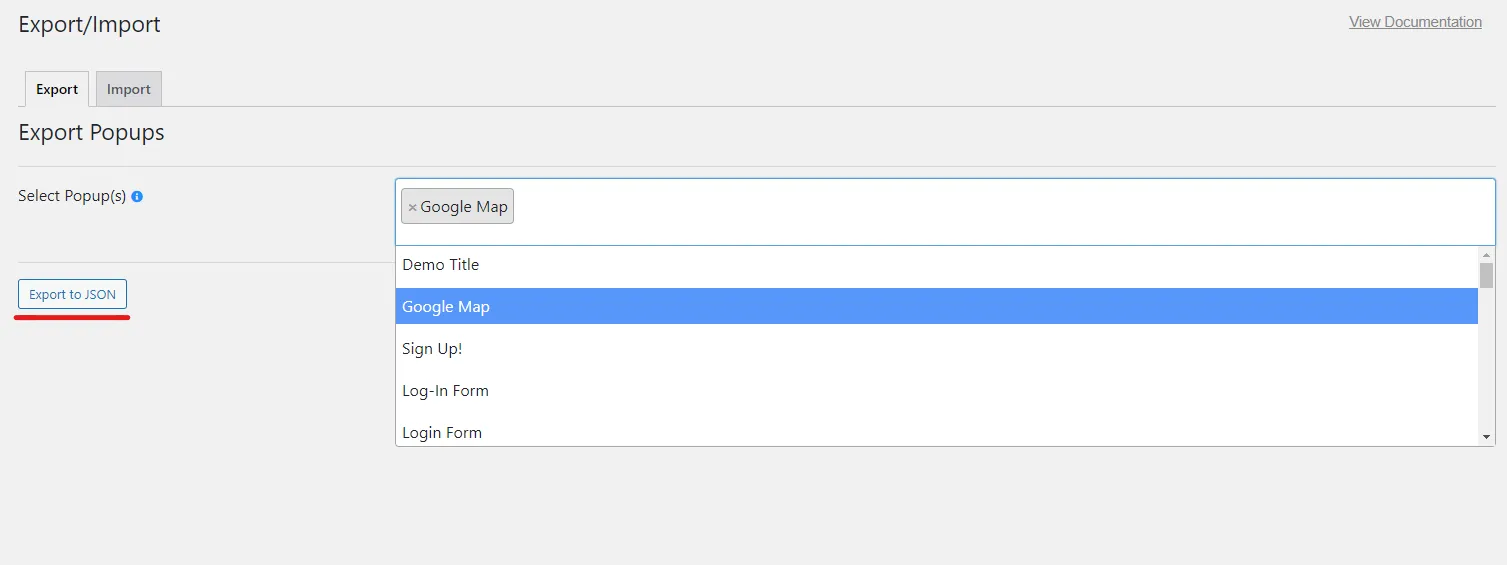
Choose the popup that you want to export. The plugin gives you the opportunity to choose more than one popup for exporting. Select more than one popup by clicking on the Select popup field. Then just click on the Export to JSON button for exporting the popup. It will be saved on your device. In case you want to export all the popups leave the field blank.
Import Popup
Step 1
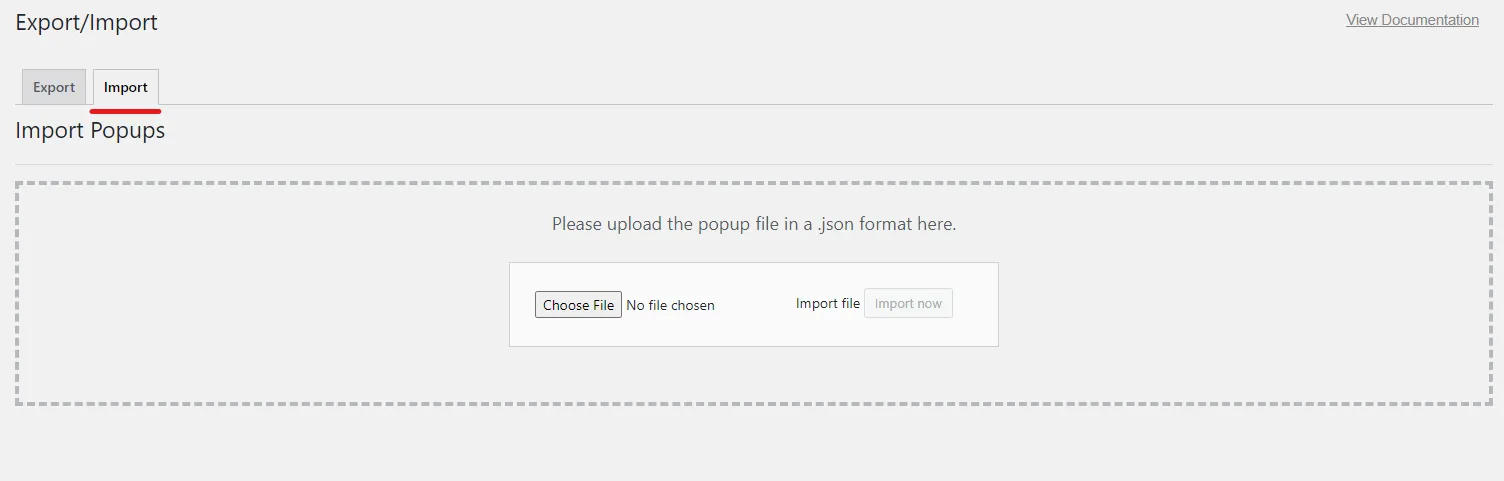
Import design and the content of your popup to the Popup Box plugin in seconds. Again, with just two similar steps you will escape from reacreating a popup. For importing a popup just move to the import section. There you will see a special section where you can upload your JSON file format.
Step 2
Click on the Choose File button, select the needed JSON file. If you already choose the popup and it is ready for importing click on the Import now button. Easy, isn’t it?
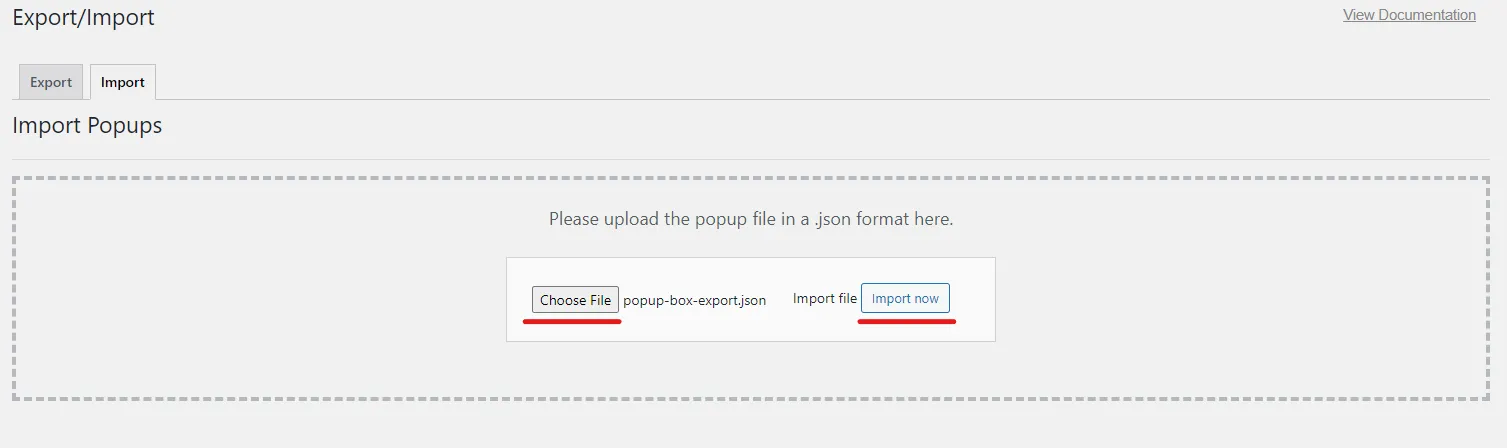
The imported popup is now waiting for you in the Popups page. Go and use it!
Wrapping Up!
It doesn’t have to be difficult and frustrating to transfer your popup. Although a lot of tools are now created for exporting or importing your popup from one website to another. But using the WordPress Popup plugin this task is an easy thing to do. This article includes description of all the necessary steps you may take fro transferring. For more information you can go and subscribe to our YouTube channel or check our blog.


