Best Way To Offer SAT Math Practice Tests Online Using WordPress
SAT Math practice works best when it feels like real practice, not like a random quiz page. The best setup is simple: a clean structure, realistic pacing, and results that are easy to understand.
In this guide, you'll learn how to structure the practice experience, build it in WordPress, calculate results with an estimated SAT Math range, and launch it confidently.
Key Takeaways
- Keep the experience focused: clear start, smooth test flow, clean finish
- Build a reusable question bank so you can create new practice sets fast
- Use multiple-choice plus student-produced responses for realistic practice
- Show results in one line: correct count, percent, estimated SAT Math range
- Run a launch checklist so timing, scoring, and mobile layout feel solid
How to Structure SAT Math Practice Test: Sections, Timing, and Pacing
If students feel like the test is realistic, they trust the practice, and they come back. If it feels messy, they quit early or ignore the score. Structure is what makes online practice feel serious.
Keep the Flow Predictable
A student should instantly understand:
- What they are taking
- Whether it's timed or untimed
- What happens after they submit (score, review, feedback)
Small things like a short instruction line at the top and a progress indicator make the experience feel organized.
Use Timing that Trains Real Pacing
Digital SAT Math is two separate timed modules of about 35 minutes each. That matters for practice design because students experience:
- A first-time module
- A short transition
- A second timed module that can feel harder depending on how Module 1 went
Best practice for WordPress: build practice as either:
- Two separate quizzes: "SAT Math Module 1 (35 minutes)" and "SAT Math Module 2 (35 minutes)", or
- Shorter drills per module (for example, 15–20 minute sets) and combine them later
Also worth building around:
- A calculator is allowed for both modules, so your practice should assume calculator access the whole time.
- The SAT is section-adaptive (Module 2 difficulty depends on Module 1 performance). Most WordPress quiz plugins cannot automatically replicate this adaptive logic. But you can simulate it by offering two versions of Module 2 (standard and harder) and routing students based on Module 1 score.
Mix Question Styles so it Feels Like SAT Practice
The fastest upgrade you can make is using more than one question style:
- Multiple-choice for speed and recognition
- Student-produced responses for careful work and answer generation
This mix helps students practice the two most common "modes" of SAT Math thinking.
Make it Flexible for Different Creators
Your own setup used a structured practice build (categories plus two question types) as a clean starting point. The key is that your readers can scale it however they want. The "best way" is not one perfect number. It's a repeatable system.
- Build categories that match SAT Math domains
- Keep a reusable question bank
- Assemble modules fast
- Show results clearly
- Improve the weak spots over time
How to Create an SAT Math Practice Test in WordPress (Step-by-Step Guide)
Creating an online exam in WordPress is much easier than it sounds. With Quiz Maker by AYS Pro, you can build professional exams with timers, grading rules, certificates, and automated emails, without touching a single line of code.
Here's the full process, broken down into simple, practical steps on how to create an SAT Math practice test using WordPress.
Step 1: Install and Activate the Plugin
Start from your WordPress dashboard.
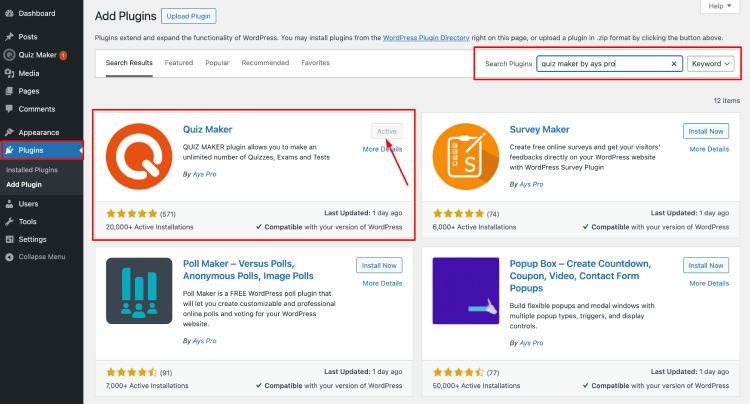
- Go to Plugins → Add New
- Search for Quiz Maker by AYS Pro
- Click Install, then Activate
Once activated, you'll see a new Quiz Maker menu in your dashboard.
Step 2: Create SAT Math Categories
Before you add lots of questions, set up categories that match how SAT Math is actually taught and reviewed:
- Algebra
- Advanced Math
- Problem Solving & Data Analysis
- Geometry & Trigonometry
Why this matters: later, your results should show what to practice next, not just "you scored 60%."
If you want deeper feedback, add tags for common skills like:
- Linear equations
- Systems
- Functions
- Ratios and unit rates
- Circles
- Right triangles
- Data interpretation

Step 3: Add Questions to Your Question Bank
Now build your question bank, but treat formatting like a feature, not an afterthought.
Go to Quiz Maker → Questions → Add New.
Format Equations and Expressions Cleanly
SAT Math questions break easily when they wrap badly on phones.
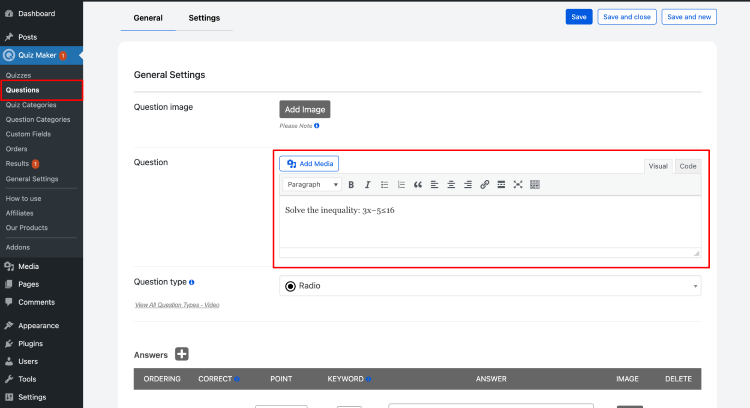
Use these rules:
- Keep expressions short per line when possible
- Avoid awkward line breaks inside exponents or fractions
- Preview on mobile widths before publishing
When to Use Text vs Images (Graphs, Tables, Coordinate Planes)
Use images for:
- Graphs and coordinate planes
- Geometry diagrams
- Tables that would collapse on mobile
Use text for:
- Simple equations
- Clean multiple-choice options
- Short word problems
If you use images, make them crisp and zoomable. Blurry graphs make practice feel fake.
Student-Produced Response (Numeric Input) Setup
This is the most SAT Math-specific part. Decide what formats you will accept for correct answers:
- 0.5 vs .5
- 1/2 vs 0.5
- 2/4 is equivalent to 1/2
- Rounded answers like 3.1 when the prompt says "nearest tenth."
If the plugin lets you add multiple correct answers, include common equivalents. If it is strict, tell students the required format in the prompt, like: "Enter your answer as a decimal."
This one detail prevents a ton of "I got it right, but the site marked it wrong" frustration.
Step 4: Build Two Timed Quizzes (Module 1 and Module 2)
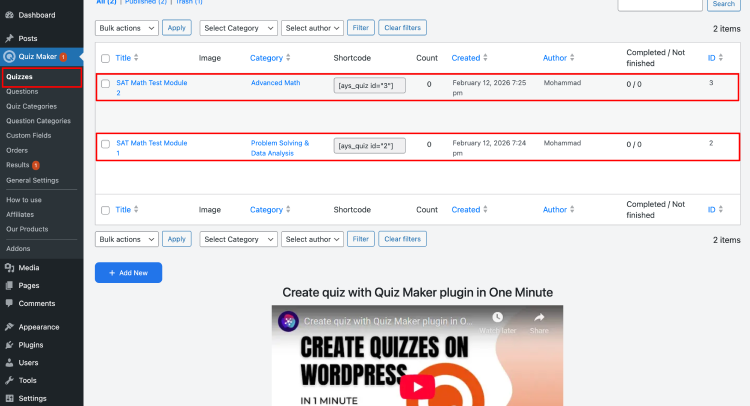
Create two timed quizzes for modules 1 and 2. Full-time SAT keeps it to 35 minutes each. You can keep your time for the practice modules as you want.
- SAT Math Module 1 (35 minutes)
- SAT Math Module 2 (35 minutes)
This matches the digital SAT experience and trains pacing correctly.
If you want to simulate adaptivity:
- Create "Module 2 (Standard)" and "Module 2 (Hard)"
- Tell students how to choose (example: "If you got 75%+ on Module 1, take the Hard version.")
It is not perfect adaptivity, but it creates a similar feel.
Step 5: Configure Quiz Settings for SAT Math
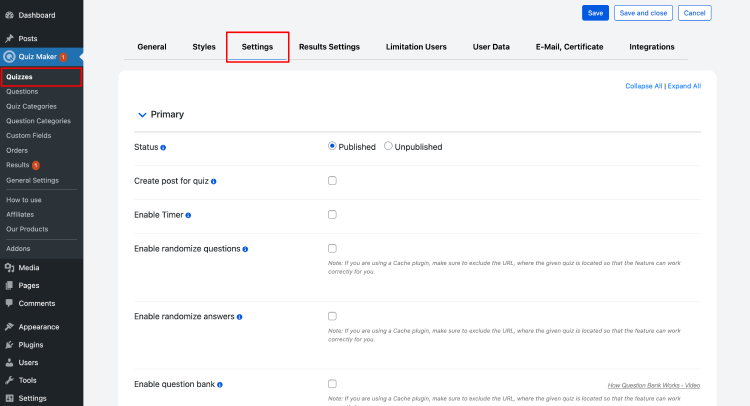
This is where you make the practice feel like SAT Math.
Timer and Pacing
- Set the timer to 35 minutes per module quiz
- Make the timer visible and predictable
Navigation That Matches Testing Feel
- Keep the flow clear (next, back, review). Avoid settings that make students feel lost or trapped.
- Use a progress indicator so they know where they are.
Balance Difficulty Across Domains
For each module, mix questions across:
- Algebra
- Advanced Math
- Problem Solving & Data Analysis
- Geometry & Trigonometry
Even a simple balance helps prevent "this module was all one topic," which ruins trust in the score.
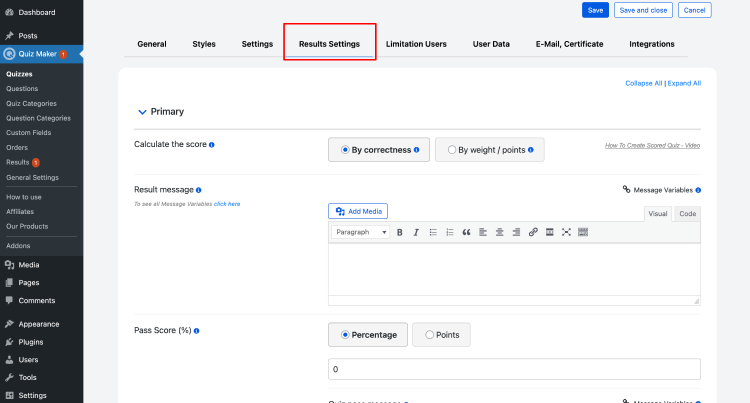
Step 6: Set Up Results That Diagnose Weakness
An SAT-style result should be instant and easy to trust.
At minimum, show:
- Correct count
- Percent
- Estimated SAT Math score range (based on your chart)
Also show:
- Domain breakdown (which domains are weakest)
- Review mode (which questions were missed)
- Optional pacing signals (if students rushed specific question types)
Pacing data is especially useful in SAT Math because some question types cause predictable time loss:
- Set-up-heavy word problems
- Function questions
- Geometry diagrams
- Data interpretation tables
This makes your exams feel more structured and meaningful.
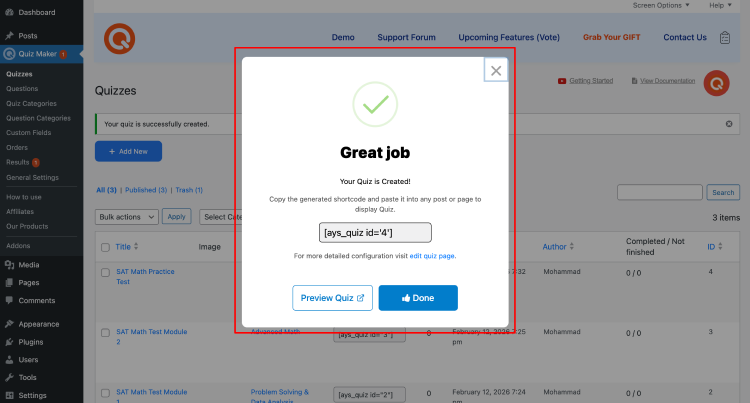
Step 7: Publish the Practice Test
Once everything is ready:
- Save the quiz
- Preview it (especially on mobile)
- Copy the shortcode
- Paste it into your SAT Math practice page
How to Calculate SAT Test Results
For practice sets, the most useful format is:
- Correct count (raw)
- Percent
- Estimated SAT Math score range (based on your chart)
Also, remember: SAT section scores run 200–800, so your estimated bands should sit inside that range.
Raw Score
The raw score is simply how many answers the student got correct.
Percent
Percent = (Correct ÷ Total Questions) × 100
Estimated SAT Math Range (For a 15-Question Practice Set)
Important note (keep this line): This is an estimate for a short practice set, not an official SAT conversion.
| Correct (Out Of 15) | Percent | Estimated SAT Math Score |
|---|---|---|
| 15 | 100% | 790–800 |
| 14 | 93% | 760–790 |
| 13 | 87% | 730–760 |
| 12 | 80% | 700–730 |
| 11 | 73% | 660–700 |
| 10 | 67% | 620–660 |
| 9 | 60% | 580–620 |
| 8 | 53% | 540–580 |
| 7 | 47% | 500–540 |
| 6 | 40% | 460–500 |
| 5 | 33% | 420–460 |
| 4 | 27% | 380–420 |
| 3 | 20% | 340–380 |
| 2 | 13% | 300–340 |
| 1 | 7% | 260–300 |
| 0 | 0% | 200–260 |
Display it in One Clean Line
Use this at the top of the results page:
You got X/15 correct (Y%) → Estimated SAT Math: score range.
Then, below that, you can optionally show deeper feedback if you want (topic breakdown, review mode, explanations). The key is that the first line should already feel complete.
Conclusion
A real SAT Math practice test is not about flashy design. It's about trust. Students come back when the experience feels calm, focused, and predictable. A clean layout keeps attention on the problem, not the page.
If it's timed, the timer should be visible and steady. If it's untimed, say that clearly so students treat it as accuracy practice. Either way, pacing should feel fair and realistic.
Results should teach, not just grade. Students want to know how they did, what to practice next, and whether they're improving. A one-line score plus a clear review view makes practice feel like real prep.
That's why the best way to offer SAT Math practice tests online using WordPress is to keep it structured and repeatable. Build a question bank, assemble quizzes fast, match pacing to real practice, and show results clearly with an estimated SAT Math range.